If there are network issues, you may not be able to place calls, send text messages or use the Internet. In some cases, your phone’s signal suddenly drops. At other times, your SIM card just doesn’t work or your Wi-Fi connection keeps dropping. Knowing how to fix network problems can help you restore your connection without visiting a repair shop.
The vast majority of network issues can be caused by low signal strength, misconfiguration, or transient network issues. But, broken SIM readers, antennas and other phone elements can cause connection problems as well. This guide will tell you the most common causes of network issues and how to fix them easily.
What Causes Network Problems on a Mobile Phone?
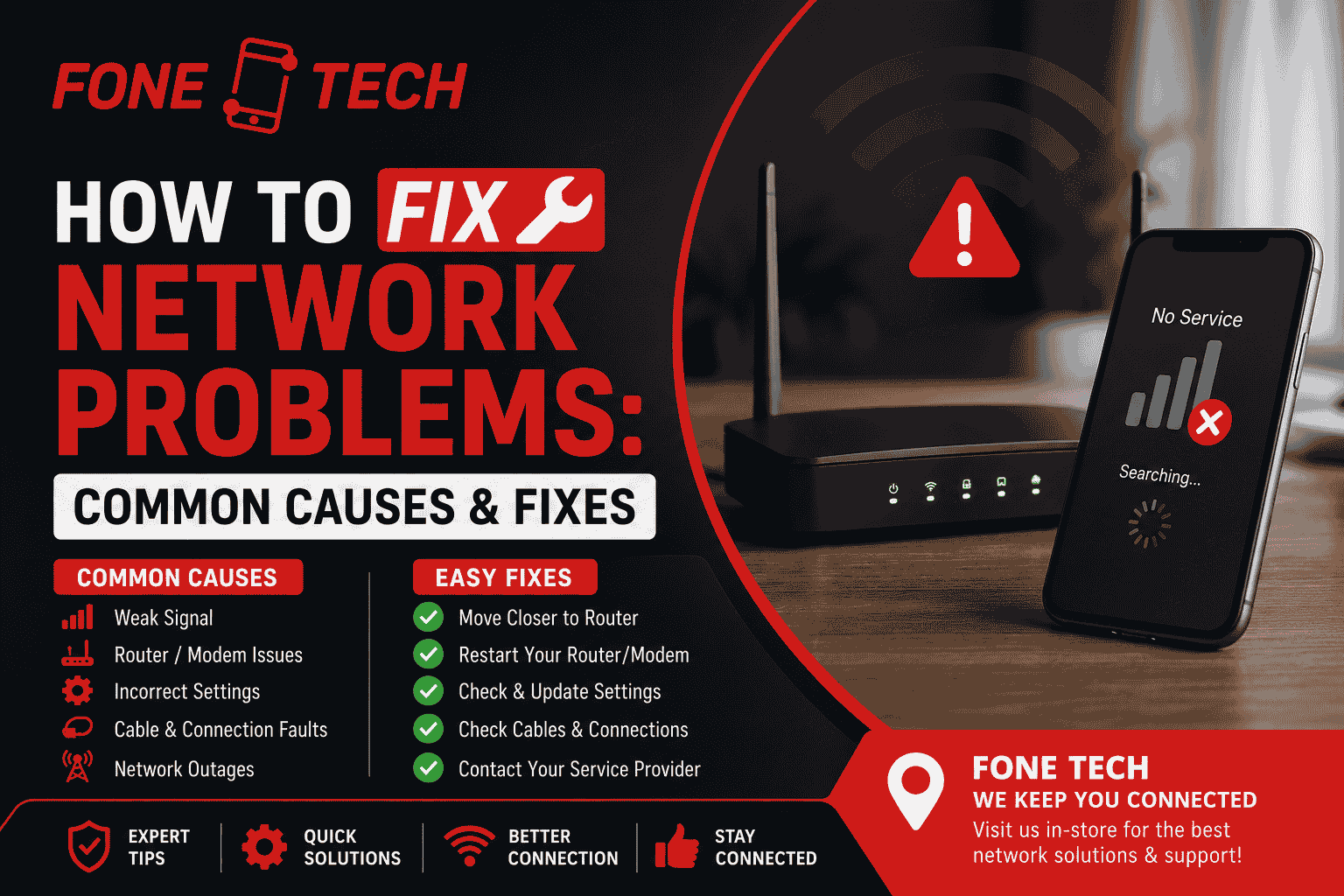
Network issues typically occur due to low signal strength, SIM card failures, or incorrect settings or phone damage. Your mobile company can also have brief service issues. By looking at these usual causes first, you’ll be better equipped to see why your phone is not connecting and which solution you should pursue.
Common causes include:
- Thick walls: Underground spaces and remote locations can diminish mobile signals.
- SIM card issues: If your SIM card is damaged or loose, your phone might not connect.
- Network congestion: If a network is overloaded, calls and mobile Internet may be delayed.
- Outdated settings: Connectivity issues can be caused by wrong network selections or outdated software.
- Hardware issues: Faulty antennas or SIM readers can result in frequent signal drops.
- Router issues: This may be due to outdated routers, loose cables or too many devices plugged into the router.
There are also some computer network issues that include IP address conflicts, incorrect gateway settings, DNS errors or outdated network adapter drivers.
How to Fix Network Problems: Easy Solutions
Many network issues can be resolved by restarting your phone, verifying the SIM card and re-activating your connection. Do basic tests first, then advanced settings. The following steps will remove temporary errors and reconnect the device to the mobile network.
1. Restart Your Mobile Phone
A reboot of the phone can help remove temporary software glitches and re-establish a phone’s network connection. Switch off, wait 30 seconds and then switch back on. Wait a minute to locate your cell phone signal. Next, see if your signal bars are back.
2. Turn Aeroplane Mode On and Off
Aeroplane Mode disables the wireless connectivity of your phone. You can refresh your mobile connection by turning it on and off.
Tap the quick settings from your phone. Check it for visible damage or dirt, then place it correctly in the tray. If possible, test it in another compatible phone to check whether the SIM or device causes the problem.
4. Select Your Mobile Network Manually
Your phone may struggle to connect when automatic network selection does not work correctly. Open your mobile network settings and find the network selection option. Turn off automatic selection and wait for available networks to appear. Select your provider from the list. If it does not appear, check for a local network outage.
5. Check for Software Updates
Old software can sometimes cause connection problems. Phone manufacturers release updates to fix errors and improve device performance. Open your phone settings and check for available software updates. Install suitable updates using a stable Wi-Fi connection. Also, check whether your provider has shared any instructions about your SIM or mobile settings.
How Do I Reset My Network Connection?
You can reset your network connection through your phone’s settings. This removes saved network information and gives your device a fresh start. It can help when ordinary troubleshooting does not work. However, a reset can remove saved Wi-Fi passwords and Bluetooth connections.
On an iPhone:
- Open Settings.
- Select General.
- Tap Transfer or Reset iPhone.
- Select Reset.
- Choose Reset Network Settings.
On Android:
- Open Settings.
- Select System or General Management.
- Find Reset Options.
- Select Reset Wi-Fi, Mobile and Bluetooth.
- Confirm your choice.
Your phone may restart after the reset. Connect to Wi-Fi again and check your mobile signal.
How Can I Fix My SIM Network Problem?
A SIM network problem can happen when your SIM card has a fault, your provider has restricted the service or your phone cannot read the card. Check your SIM status, account and network settings before replacing the card. These checks can help you find the cause.
Try these simple solutions:
- Check whether your SIM card sits correctly in its tray.
- Make sure your mobile account remains active.
- Check whether your provider has suspended your SIM.
- Try your SIM in another compatible phone.
- Test another working SIM in your own device.
The problem: Your phone displays No SIM, Invalid SIM or No Service, even when your SIM works in another phone.
The fix: Ask a technician to inspect the SIM reader and internal network components. Avoid forcing the SIM tray because this can cause further damage.
Why Am I Having Network Issues?
You may have network issues because of poor coverage, temporary provider faults, incorrect settings or damaged phone components. Sometimes, your phone works correctly, but your network provider experiences an outage. Checking other devices and your location can help you identify the cause.
Here are some common situations:
- Network congestion: Your internet may slow down when many people use the same mobile network.
- Wi-Fi interference: Thick walls and nearby electronics can weaken wireless signals.
- Router problems: Loose cables or faulty equipment can interrupt your home internet.
- Configuration errors: Incorrect network settings can stop your device from connecting.
- Hardware faults: Damaged antennas or internal connections can affect reception.
If your home Wi-Fi stops working, restart your router and modem. Unplug both devices, wait around 30 seconds and reconnect them. Also, check that every cable fits properly.
For mobile coverage, use the Ofcom mobile coverage checker to compare network availability in your area.
Why Suddenly No Network?
Your phone may suddenly lose its network because of a local outage, temporary signal loss, SIM fault or internal hardware problem. If your signal disappears without warning, check whether other people using the same provider have lost service. This helps you avoid unnecessary changes to your phone.
Follow these quick checks:
- Move near a window or go outside.
- Turn aeroplane mode on and off.
- Restart your phone.
- Check your provider’s network status.
- Remove and carefully reinsert your SIM card.
- Check for recent software updates.
If your phone still shows No Service in different locations, the problem may involve its antenna or other internal components.
The problem: Your phone only loses signal in certain places.
The fix: Check your provider’s coverage in those areas. Buildings, hills and other physical barriers can weaken mobile reception.
The problem: Your phone loses its signal everywhere.
The fix: Test your SIM in another phone. If different working SIM cards also fail in your device, arrange a professional inspection.
When Should You Get Professional Help?
If your phone still has network problems after basic checks, it may have a damaged antenna or SIM reader. A technician can identify the fault and suggest a suitable repair.
Fone-Tech Burnley offers signal issue repairs for smartphones, tablets and laptops. Visit the shop at Charter Walk Shopping Centre, 41 The Mall, Burnley BB11 1BD, or call 01282 943696.
The team confirms the inspection fee and repair cost before work starts. Hardware repairs include a three-month warranty, while board-level repairs include a one-month warranty. Back up your data before handing over your device.
Final Thoughts:
Knowing how to fix network problems can save you time and help you stay connected. Start with simple steps such as restarting your phone, checking your SIM and refreshing your network settings.
However, repeated signal loss may point to a hardware fault. Avoid changing random settings if your phone still cannot connect. A professional inspection can help identify the actual problem.
Fone-Tech Burnley can help investigate mobile signal faults and other device connectivity problems.
Buttons: Book a Repair | Contact Us
Frequently Asked Questions
1. Why does my phone say Emergency Calls Only?
Your phone may show Emergency Calls Only when it cannot connect to your normal mobile network. Check your SIM card, provider coverage and account status. If the message continues, contact your network provider.
2. Can a phone case affect network reception?
Some phone cases contain metal parts that can interfere with signal reception. Remove your case temporarily and check whether your phone receives a stronger signal.
3. Why does my phone have full signal but no internet?
Full signal bars do not always mean your mobile data works correctly. Check your data allowance, mobile data settings and provider service before changing other network settings.
4. Can a damaged phone screen cause network problems?
A cracked screen does not normally affect network reception directly. However, a strong impact can also damage internal components, including the antenna and its connections.
5. Does changing my SIM card fix network problems?
A replacement SIM can solve problems caused by an old, damaged or faulty SIM card. However, it cannot repair a damaged phone antenna or SIM reader.
6. Can water damage cause a phone to lose its network signal?
Yes. Liquid can damage internal connections and antenna components. Switch off a water-damaged phone, avoid charging it and arrange a professional inspection.